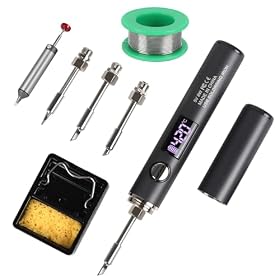
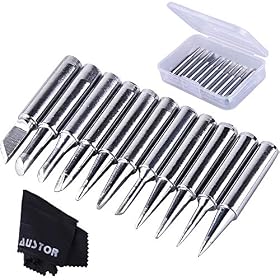
A USB-C soldering iron that heats slowly, cycles on and off, or cannot maintain temperature may be receiving too little power. Check the charger’s USB Power Delivery profile, cable, and the iron’s requirements before replacing the iron.
What do you need help with?
Open an answer, or tell us what we should cover next.
Answered in this guide
Diagnose an underpowered USB-C soldering iron
Check the iron’s symptoms, charger, cable, negotiated power, and tip condition to find why it heats slowly, cycles on and off, or cannot maintain temperature. This separates a power problem from a soldering or hardware problem.
Check whether a USB-C charger provides enough power
Read the charger’s USB Power Delivery voltage and current output, then compare it with the iron’s requirements. A USB-C connector or advertised maximum wattage alone does not prove the charger can supply enough sustained power.
Check whether the USB-C cable is limiting the iron
Inspect the cable and replace it with a short, good-quality cable rated for the iron’s power needs. An inadequate cable can reduce performance even when the charger itself has the right output.
Check whether the iron and charger negotiated power correctly
Compare the iron’s displayed input voltage, power, or startup status with the charger’s output and the iron’s documentation. Incorrect negotiation can leave the iron running at a lower power level than expected.
Tell whether the tip or soldering task is causing weak heating
Check the tip size, oxidation, tinning, and suitability for the joint before blaming the charger. A small, dirty, or poorly tinned tip can make an adequately powered iron seem unable to heat the work.
Request a topic and help us choose what to build next.
Repair or replace an iron that still fails with good power
Maintain and retin a soldering iron tip
Fix solder that will not melt during a joint
Prevent damage from using an unsuitable power source
Requests help us prioritize the next guide. No email required.
One anonymous request per topic.
A USB-C soldering iron that heats slowly, struggles to maintain temperature, or shuts off during a joint is often connected to an underpowered charger. The iron and charger must agree on a suitable USB Power Delivery (PD) voltage and provide enough wattage; a charger that can charge a phone may still be a poor match for a soldering iron.
Why a USB-C soldering iron needs more than a USB-C port
USB-C describes the connector, not the amount of power available. A charger may have a USB-C socket but provide only a low-power charging mode unless the iron successfully negotiates a higher-power USB PD profile.
The iron’s power draw depends on its heater, operating temperature, input voltage, and how much heat the workpiece removes. Large joints, ground planes, thick wires, and metal connectors require more heat than small signal wires or circuit-board pads.
A charger can be underpowered in several ways:
Its maximum wattage is below the iron’s stated requirement.
It supports USB-C but not the required USB PD voltage.
It supports PD, but not the voltage or current profile the iron expects.
Its total output is shared with another connected device.
The cable cannot support the required current or does not properly identify itself.
The charger reduces output because of heat, battery level, or its own protection circuitry.
Symptoms of an underpowered USB-C iron
Power problems commonly produce one or more of these symptoms:
The iron takes much longer than expected to reach temperature.
The display shows a lower input voltage or power level than expected.
The temperature drops sharply when the tip touches a joint.
The iron repeatedly starts and stops heating.
It works from one power supply but not another.
The iron runs normally at a low temperature but cannot hold a higher setting.
A power bank turns off because the iron’s load changes rapidly.
The charger or cable becomes unusually warm.
A small temperature drop during a demanding joint can be normal. A persistent failure to heat, repeated resets, or an unusually hot power setup points to a power-delivery or equipment problem.
Compatible power source for a USB-C soldering iron
Product prices and availability are accurate as of the date/time indicated and are subject to change. Any price and availability information displayed on Amazon.com at the time of purchase will apply to the purchase of this product.
Check the charger’s PD output first
Read the output label on the charger rather than relying on its advertised maximum wattage. Look for USB PD output combinations such as voltage and current, not just a number labeled “fast charging.” The iron’s manual or specifications should identify the input voltage range, required PD profiles, and recommended power level.
For example, a charger may advertise a high total wattage but provide that output only through a specific port or only when other ports are unused. Multi-port chargers can also divide available power when a laptop, phone, or other device is connected.
Check these points:
Confirm that the charger supports USB PD, if the iron requires PD negotiation.
Compare the charger’s supported voltage profiles with the iron’s requirements.
Confirm that the usable output comes from the USB-C port you are using.
Disconnect other devices from a multi-port charger.
Leave headroom above the iron’s stated power requirement when the manufacturer recommends it.
Do not assume that a charger with a higher wattage rating is automatically compatible. Voltage compatibility and the correct PD negotiation matter as well. Do not force a nonstandard voltage or use an adapter that bypasses the iron’s intended power controls.
Product prices and availability are accurate as of the date/time indicated and are subject to change. Any price and availability information displayed on Amazon.com at the time of purchase will apply to the purchase of this product.
Inspect the USB-C cable
A cable can limit performance even when the charger is adequate. Use a short, good-quality USB-C cable rated for the power level required by the iron. Some higher-current USB-C arrangements require an electronically marked cable; the charger and iron may limit output if the cable does not identify its capabilities correctly.
Try these basic checks:
Use the cable supplied with the iron when it is available.
Test a second cable known to support the charger’s required power level.
Avoid loose, damaged, kinked, or excessively long cables.
Inspect the iron’s USB-C port for dust, solder debris, or mechanical damage.
Make sure the plug is fully inserted at both ends.
Do not clean a powered USB-C port with metal tools or liquid. Disconnect power first, and follow the manufacturer’s cleaning instructions.
Check whether the iron is negotiating power correctly
Many USB-C irons display their input voltage, power, or charging status during startup. Compare that information with the charger and iron documentation. If the display indicates a low-voltage or low-power mode, the charger may be falling back to a basic USB output instead of negotiating the intended PD profile.
A practical isolation test is to use:
The same iron with a known-compatible charger and cable.
The same charger and cable with another compatible USB-C PD device, if available.
A different cable with the original charger.
A charger with one USB-C output and no other devices connected.
Change only one item at a time so the cause is easier to identify. If the iron works correctly with a suitable charger, the iron itself may not need replacement.
Consider the soldering task and tip
Insufficient heating is not always caused by the charger. A tip that is too small, oxidized, poorly tinned, or unsuitable for the joint can make an adequately powered iron seem weak.
Check that:
The tip is fully seated according to the iron’s instructions.
The tip is clean and lightly tinned.
The tip shape matches the work, such as a chisel tip for transferring heat to larger joints.
The selected temperature is suitable for the solder and components.
The joint is clean and, where appropriate, has enough flux.
You are not holding the tip on a large ground plane longer than the iron is designed to handle.
Do not compensate for a poor tip by raising the temperature indefinitely. Excessive heat can damage pads, insulation, components, and the iron’s tip.
When a power bank is the problem
USB-C power banks vary widely in their PD profiles and behavior under changing loads. Some shut down when the iron enters a low-power idle state, while others cannot provide the voltage or sustained wattage the iron needs.
If an iron works from a wall charger but not a power bank, compare the power bank’s USB-C output profiles with the iron’s requirements. Also check whether the power bank has a low-current mode or an operating mode intended for small electronics. Do not use a power bank that becomes excessively hot, swells, smells unusual, or repeatedly disconnects.
When the charger is not the right fix
Replace or change the charger when the iron works normally with another compatible power source and the original charger cannot provide the required PD profile or sustained output. A replacement charger should match the manufacturer’s voltage and PD requirements, provide sufficient wattage, and have a suitable USB-C cable.
Consider replacing the cable when changing cables consistently resolves the problem, especially if the original cable is damaged or becomes hot at the connectors.
Consider service or replacement of the iron when it fails with multiple known-compatible chargers and cables, shows physical USB-C damage, reports an internal fault, or shuts down despite receiving the required power. Stop using the setup if there is arcing, smoke, a burning odor, exposed wiring, or abnormal heat. For uncertain electrical faults, follow the manufacturer’s service guidance or use a qualified technician.
Quick diagnosis checklist
Read the iron’s required voltage, PD profiles, and wattage.
Check the charger’s output by port, not only its total advertised wattage.
Disconnect other devices from the charger.
Try a suitable, properly rated USB-C cable.
Check the iron’s displayed input voltage or power, if available.
Test the iron with a known-compatible charger.
Inspect and replace a worn or oxidized tip.
Match the tip size and shape to the joint.
Stop using the setup if the cable, charger, or iron becomes dangerously hot or shows damage.
Can any USB-C charger power a USB-C soldering iron?
No. The charger must provide the voltage, USB Power Delivery profiles, and sustained wattage required by the iron. A USB-C connector alone does not guarantee compatibility.
Why does my USB-C soldering iron work slowly with a phone charger?
Many phone chargers provide a lower-power mode or a PD profile that does not match the iron. The iron may fall back to reduced power, causing slow heating or temperature loss at the joint.
Does a higher-wattage charger make a USB-C iron heat faster?
Only if the higher-wattage charger also supports a compatible voltage and PD profile. The iron draws only what it is designed to accept, so wattage by itself does not establish compatibility.
Can a USB-C cable cause a soldering iron to underperform?
Yes. A damaged, unsuitable, or improperly identified cable can limit current or prevent the expected PD negotiation. Try the supplied cable or another cable rated for the required power.
Why does my soldering iron shut off when connected to a power bank?
The power bank may not support the iron’s required PD profile, may shut down during low-power periods, or may limit output as the load changes. Compare its USB-C specifications with the iron’s requirements.